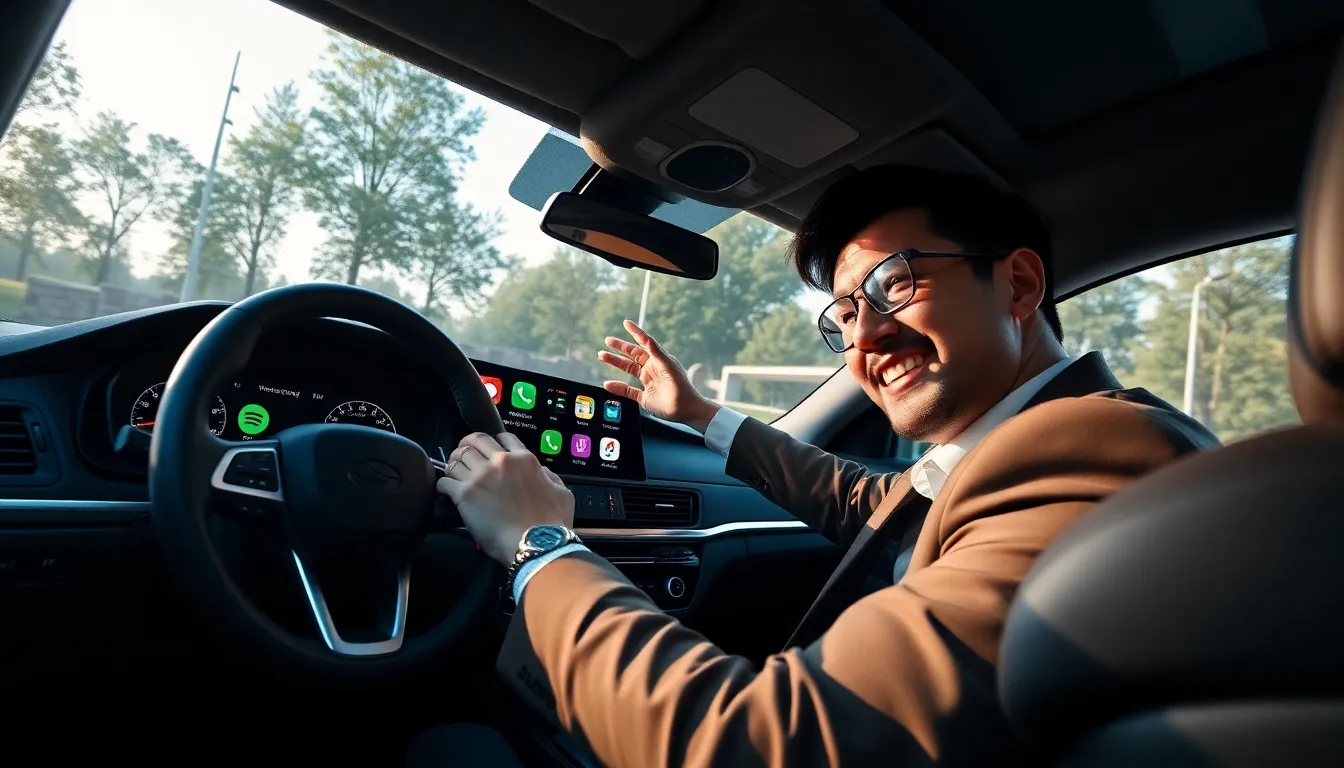
Imagine cruising down the highway, your favorite music blasting, navigation ready to guide you through the unknown, and all this happening with just a few taps. That’s the beauty of Apple CarPlay. It’s like driving your digital assistant around. But here’s the kicker: if you’re unsure how to add apps to your Apple CarPlay, you might as well be back in the dark ages, fumbling with CDs. Don’t worry: we’ve got you covered. Buckle up as we jump into everything you need to know about making your CarPlay experience as epic as your road trips.
Understanding Apple CarPlay

Apple CarPlay is Apple’s answer to in-car technology. It essentially mirrors your iPhone’s screen on your vehicle’s display. This means you can access your phone’s apps directly without pulling over to scroll through your devices. With this, users can enjoy hands-free functionality for calls, messages, music, and navigation. Imagine getting driving directions while listening to your favorite playlist, all while keeping your eyes on the road. CarPlay not only makes driving safer but also a lot more enjoyable. This feature is particularly helpful for drivers who rely on their devices for navigation and communication during their travels.
Compatible Apps for Apple CarPlay
Not every app can make the jump to Apple CarPlay, but the good news is, there are plenty that can. Think of apps like Spotify for streaming music, Waze for alternative navigation, and even WhatsApp for messaging. Most essential apps have been optimized for CarPlay, giving users an engaging and easy-to-navigate interface on their vehicle’s screen. Users should always check the App Store for any new additions or updates that support CarPlay functionality.
How To Set Up Apple CarPlay
Setting up Apple CarPlay doesn’t have to feel like you’re assembling IKEA furniture with all those confusing instructions. In fact, it can be quite simple. First, ensure your iPhone is running the latest version of iOS. Connect your iPhone to your vehicle’s USB port using a compatible lightning cable. A prompt should appear on your vehicle’s screen asking if you want to enable Apple CarPlay. Tap ‘yes,’ and voilà. You’re connected. If your car has wireless CarPlay, you can enable it in the Bluetooth settings, following the prompts on both your car and your iPhone.
Adding Apps To Apple CarPlay
Once you’ve got CarPlay up and running, it’s time to customize it with your favorite apps. Apple makes this process straightforward. First, go to your iPhone’s settings, then select “General.” From there, tap on “CarPlay,” and choose your vehicle. This will show you the apps available for CarPlay that are installed on your phone.
Managing Apps On Apple CarPlay
You can rearrange the app layout to suit your preferences. Simply tap and hold an app icon, then drag it to your desired location. This makes it easy to have your go-to apps right where you want them. Also, if there’s an app you’re not using, you can remove it from the CarPlay display. Just uncheck it from the CarPlay settings on your phone. A little customization can go a long way in enhancing your driving experience.
Troubleshooting Common Issues
Even with all the technology, things can occasionally go haywire. If your CarPlay isn’t working, here are a few common troubleshooting steps:
- Check your connection: Make sure your device is properly connected. Sometimes, a faulty cable is to blame for connection issues.
- Restart your devices: This old trick works wonders. Restart both your car’s infotainment system and your iPhone to see if this solves the problem.
- Software updates: Ensure both your iPhone and car software are up to date. Manufacturers regularly release updates that improve compatibility and fix bugs.
- Reset Apple CarPlay settings: If all else fails, try resetting your CarPlay settings in your iPhone’s settings menu.